
Simulated Operating System Environment
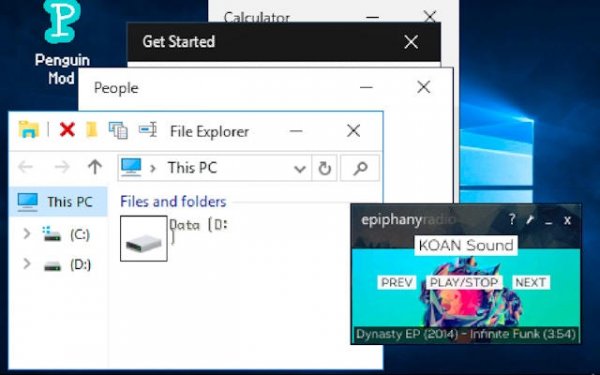
Virtual Desktop Playground recreates the visual layout and interactive elements of a contemporary operating system. Players encounter a start menu, taskbar, and system tray that respond to clicks and taps. The desktop background can be customized, and icons can be moved freely across the screen. [IMG_1] This attention to visual detail creates an authentic feel, making the experience resemble working on a real computer.
Built-In Application Suite
The simulation includes several functional applications that mimic common software tools. A text editor allows basic document creation, while a drawing program enables simple sketches. A calculator handles arithmetic operations, and a file browser lets users organize virtual folders and documents. Each app operates independently, supporting a multitasking workflow where multiple windows can be open simultaneously. [IMG_2]
System Interaction and Boot Process
Players can start the virtual machine from a boot screen, log in through a simulated authentication process, and shut down using a power menu. The interface responds to mouse and touch inputs, making it accessible on various devices. Taskbar management includes pinning favorite applications and switching between active windows. These mechanics mirror real operating system behaviors without requiring any technical knowledge.
Hidden Content and Exploration
The desktop environment contains several concealed surprises that reward careful examination. Clicking on certain icons or navigating through menus may reveal unexpected animations, sounds, or mini-applications. These hidden elements encourage users to explore every part of the interface. Some secrets may require combining actions, such as opening multiple apps in a specific order or adjusting system settings. [IMG_3]
Customization and Sharing
Personalization features allow users to adjust the look and feel of their virtual desktop. Wallpaper choices, icon arrangements, and taskbar settings can be modified to suit individual preferences. Some versions of the simulation may include additional themes or color schemes. The game supports shared experiences where multiple users can interact with the same virtual desktop environment. Players can collaborate on projects using the built-in applications or simply explore together.



Editorial Notes